Techmobile
Affichage des articles dont le libellé est internet. Afficher tous les articles

dimanche 16 octobre 2016


If you accidentally deleted a few contacts in Gmail, don't worry. You could still restore or find those email ids. This video will show you how to recover those contacts and bring back to your contact list. The process of recovering those contacts is quite easy. So please watch the video and follow all the steps carefully.


As you all know that Google always comes with some easter eggs inside their products again they have something for us to try when we are eagerly waiting for the internet connection to come active.
Google has introduced a hidden game in their latest version of Google Chrome which can be played when you are offline.
Check the below video for instructions
Have fun while offline.

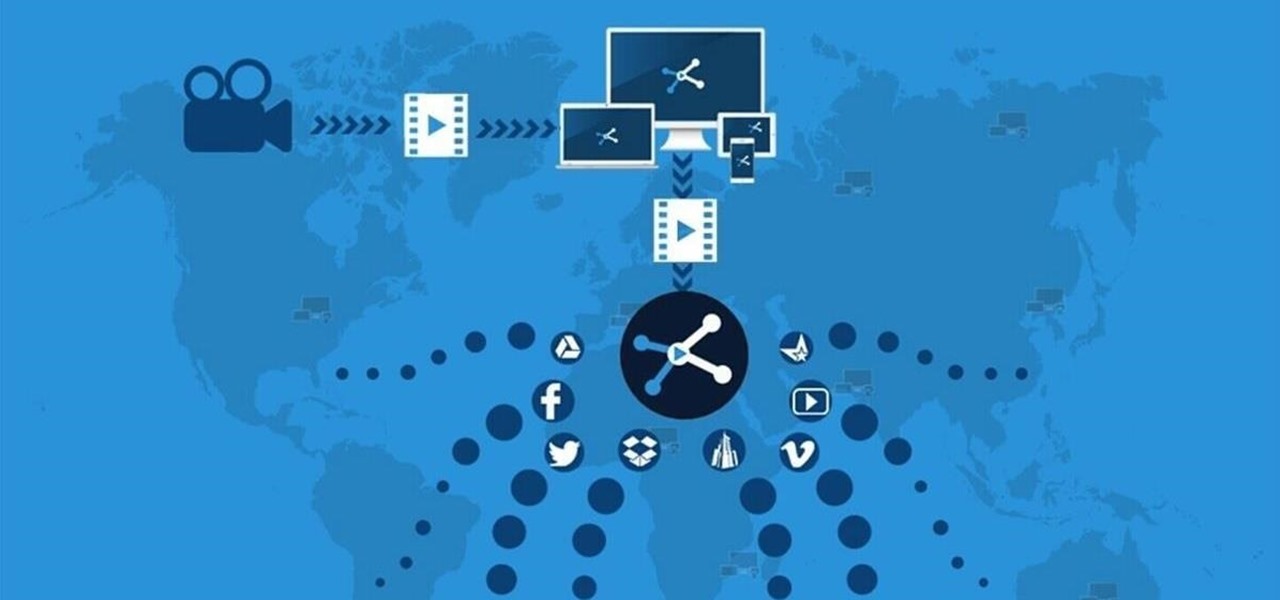
Are you tired of uploading videos to different sites separately? It's really time consuming and difficult. Finally, there is a way to upload and distribute your videosto YouTube, Facebook, Dailymotion, and many more video-hosting websites in one go. No need to upload to every site separately and one by one.
Vid Octopus provides a simple and very effective way to do that. Just choose your video, select the sites and there you go! Yes, it's that simple.
Either upload using the secure website https://vidoctopus.com or use the Android application Vid Octopus from Google Play

Step 1
Install the Vid Octopus Application

Download and install the Vid Octopus application from Google Play.

Step 2
Log in to Vid Octopus

Log in to Vid Octopus using Facebook or your email.

Step 3
Choose Video to Upload

Choose one of the four simple ways to choose the video that you wish to distribute:
  1. Enter Video URL (Facebook, YouTube, or Dropbox).
  2. Scan QR code that was generated after uploading video using the websitevidoctopus.com.
  3. From your smartphone or tablet's Gallery, choose the video to upload.
  4. Capture new video on the spot.

Step 4
Choose the Video Sites to Upload Video

Choose Video Sites and Platforms (YouTube, Facebook, Dailymotion, Dropbox, etc.) where you wish to upload your video. Only the first time you will need to log in to your accounts.

Step 5
Put Video Details

Give your video details like Title (mandatory), DescriptionCategoryTags.
You can use the same details for all you platforms if you wish by clicking Use title, description and tags for all platforms.
You can use different details for different sites. It's very flexible and all up to you.
You can also Schedule a video if you wish it to be uploaded at a later time. Scheduling is possible for 1 week in advance!

Step 6
Finalize and Distribute

  1. Scroll down and press Done Settings for each site. When the site is chosen, it's icon on the top will be highlighted.
  2. Finally when ready, press the Distribute Video button on the bottom of the screen.
That's all. Once your video is uploaded successfully, you will get a notification.
You can view all the uploaded videos from the History section. Scheduled videos can be access and release date/time modified from the Scheduled Videos section.
For any queries or information, visit our FAQ section or contact our support team directly at care@vidoctopus.com.

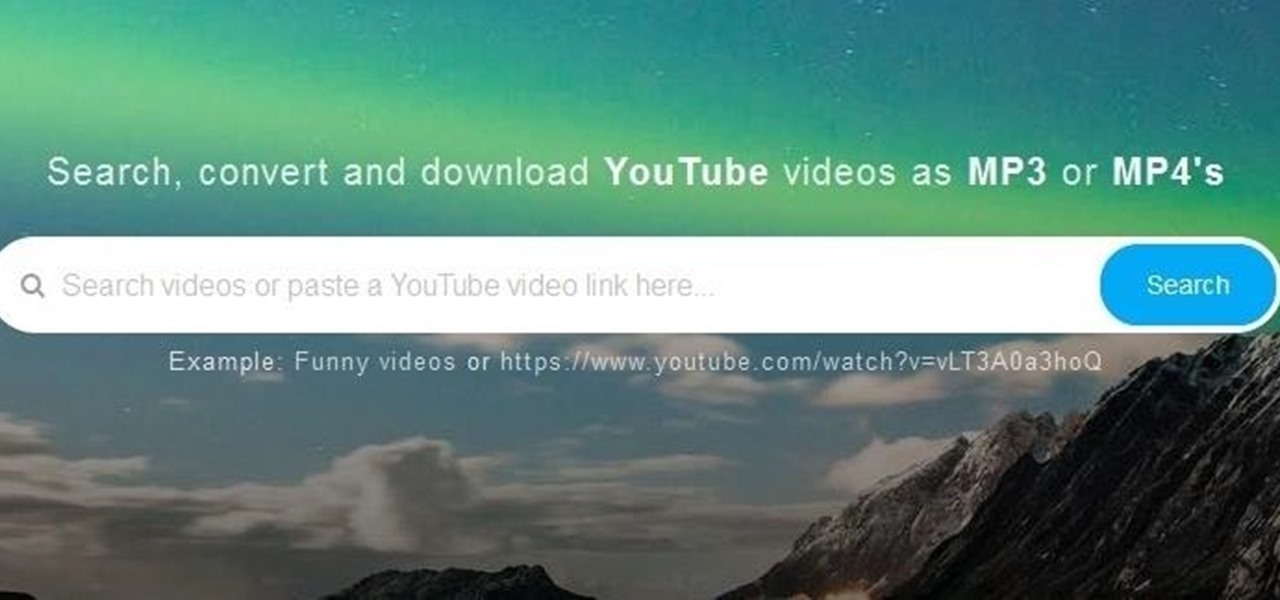
The majority of these online converters allow you to record convert and download YouTube videos in all available resolutions. In addition, this great feature you get most of these services for free and convert in real time by streaming data directly from YouTube.

Step 1
Using www.fetchy.io Website.

Go to www.fetchy.io website. These are online video that permit you to download video as either video or audio onto your PC without downloading any file first.
Image via wordpress.com

Step 2
Enter in the URL of the YouTube Video. You Can Simply Search the URL from fetchy.io.

Image via wordpress.com

Step 3
Choose "Download MP3" Button (Audio Only).

Image via wordpress.com

Step 4
Save the Downloaded MP3.

Image via wordpress.com

Step 5
Click Start and Wait for It to Convert File. This May Take a Few Minutes Depending on the Size of the File That You Are Converting.

Image via wordpress.com

Step 6
Right-Click Button "Download the Converted Video".

Enjoy your new MP3.